Support console
How to use the Support console
Everything a chatter does during a shift, in the order you do it. Each chapter is a short routine with a screenshot or a 10-second clip.
The screens below use demo clients. Names, logins and amounts are not real.
Before you press Send
Eight things that surprise new chatters. Read them once before your first shift.
- Send is real. The message goes to the client on Telegram, from the account shown on the button.
- The AI text arrives by itself. When the box is empty, the AI suggestion is placed in it. Read it before sending, it is a draft.
- “Check before sending” warns, it does not block. If you send anyway, it is logged with your name.
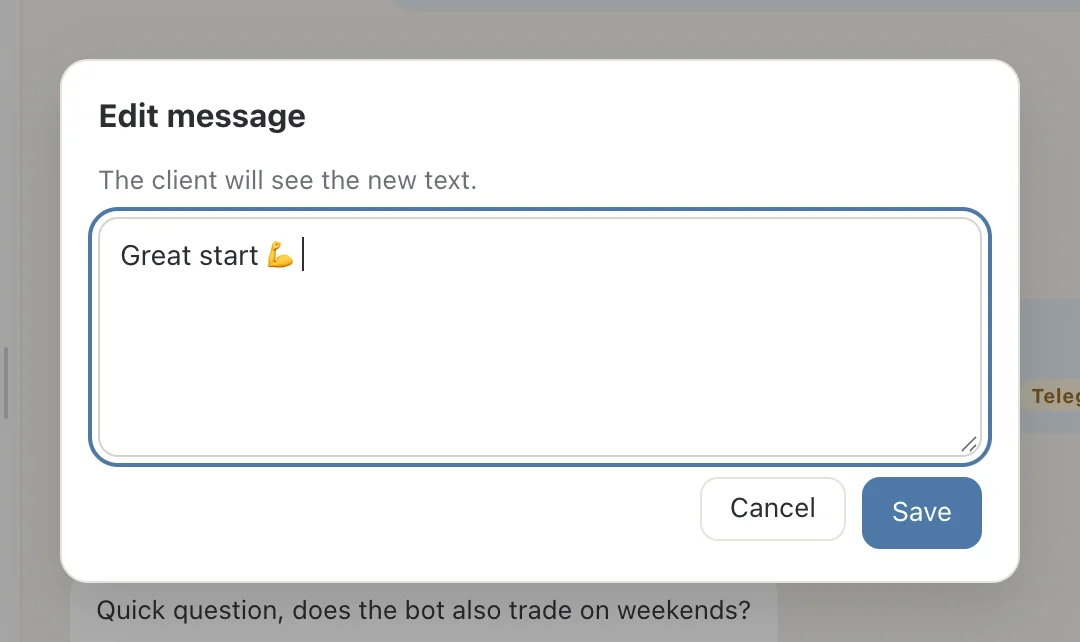
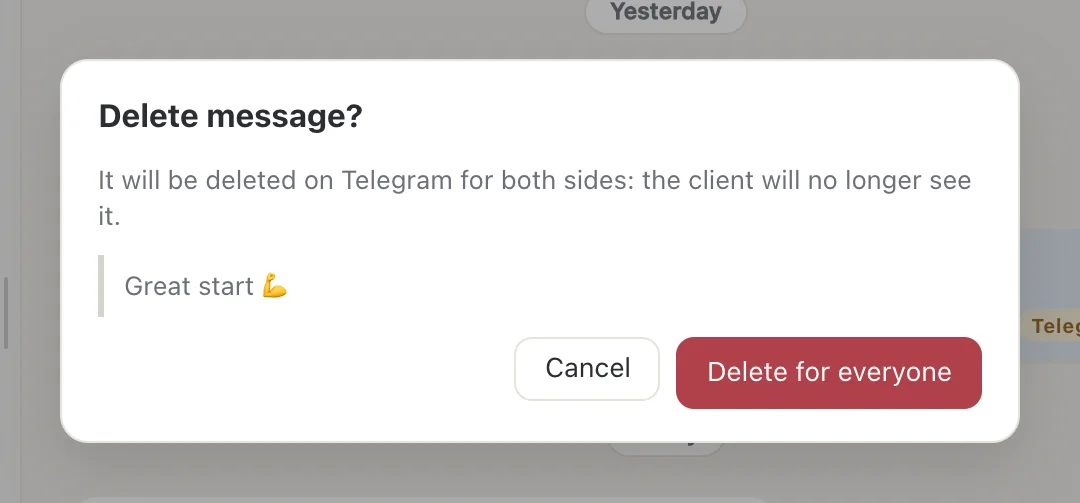
- Delete means “Delete for everyone”. It cannot be undone. With Edit, the client sees the new text.
- Sending a message does not update the CRM. A task is closed with its own button (Mark sent, Mark requested, a status…).
- PropFirm buttons save in one click. Status, Called and “+ Add to PropFirm” have no confirmation step.
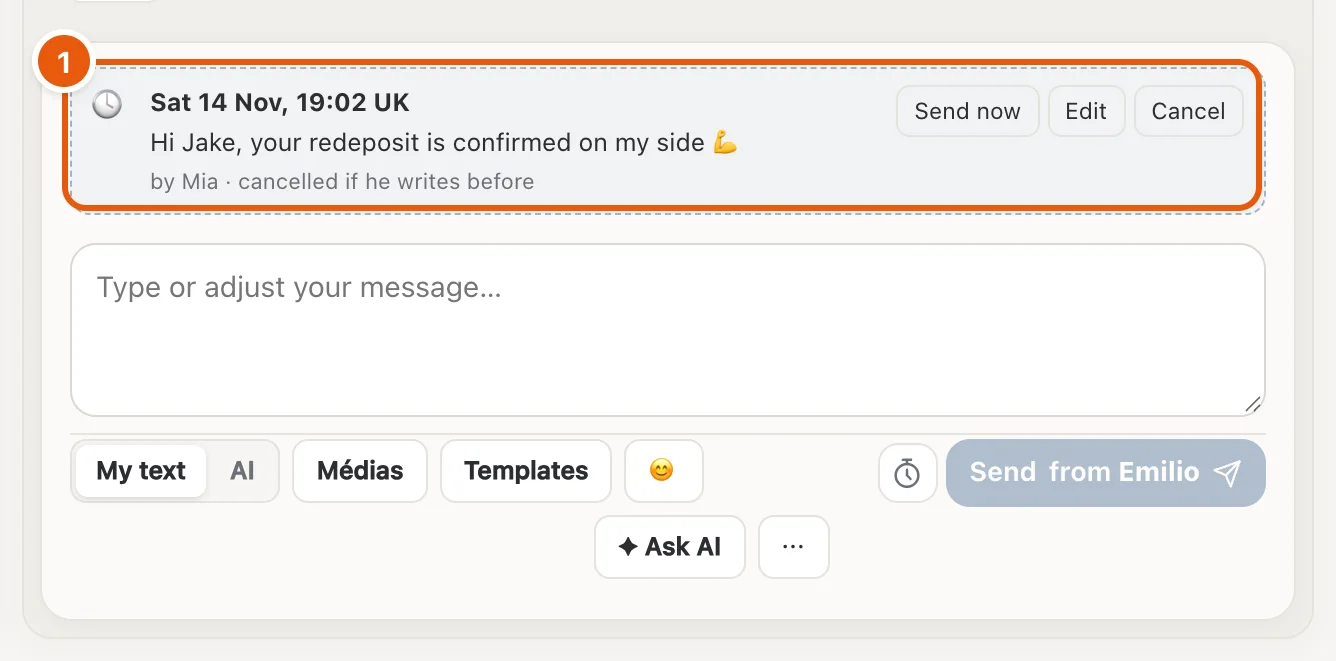
- A scheduled message is cancelled if the client writes first, unless you untick that option. Times are shown in UK time.
- Your draft lives in this browser tab only. Closing the tab loses what you typed.
1Start your shift
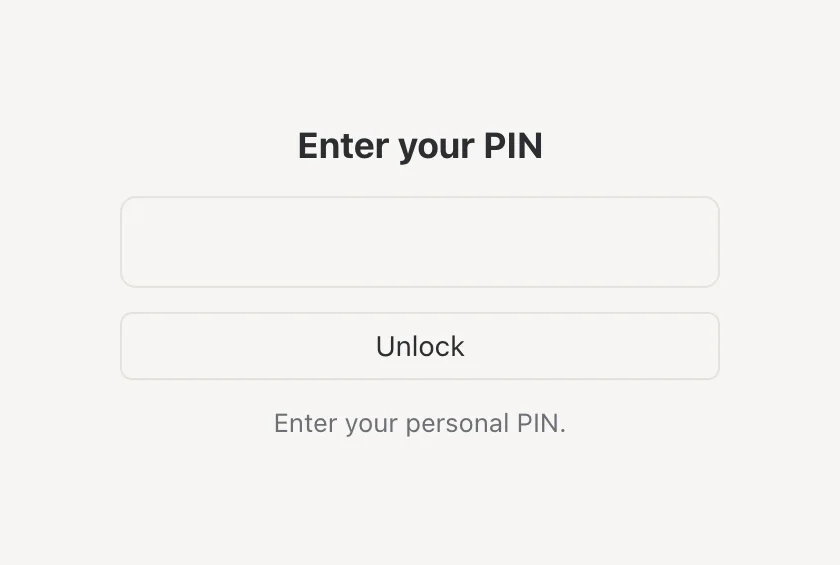
Open your link, enter your PIN
Use the Support link your manager gave you, then type your personal 6-digit PIN and press Unlock. The PIN is how the console knows who sent each message, so never share it.
You stay signed in on this device for 30 days. If the console says Session expired. Enter your PIN., type it again.
The screen in one look
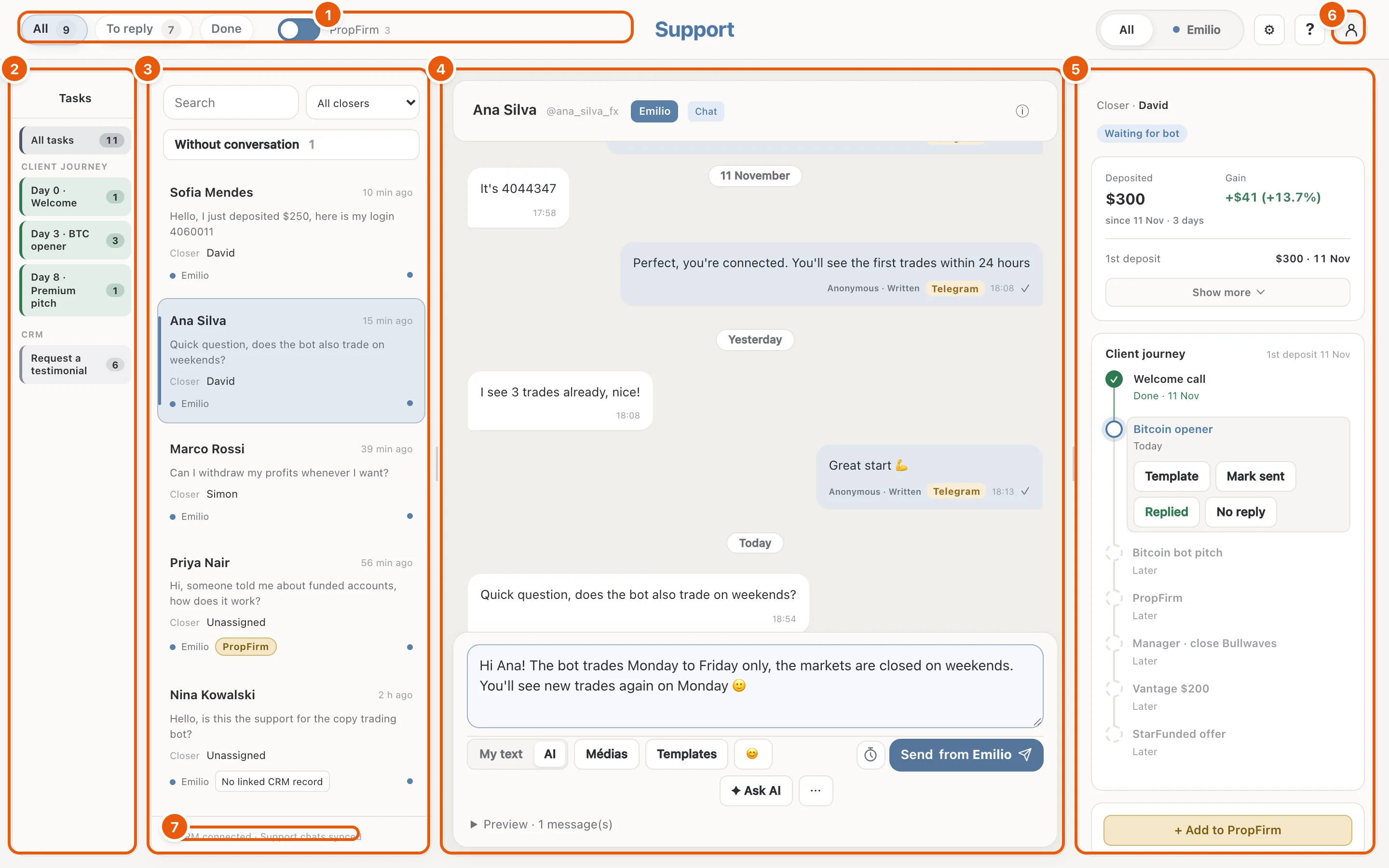
- Tabs and PropFirm switch. What the list shows.
- Task folders. One coloured label per kind of task, with its count: green for the client journey, gold for PropFirm, grey for the rest. An empty folder is greyed out.
- Conversations. Search, closer filter, then one row per client.
- Conversation. The messages, and the box where you write.
- Client card. Client file, money, client journey, PropFirm, to-do.
- Account menu. Your name, dark mode, Logout.
- Connection status. Must read “CRM connected · Support chats synced”.
The top bar

- All: every conversation.
- To reply: the client wrote last. Start here.
- Done: conversations you closed.
- PropFirm switch: off = Support clients, on = PropFirm leads.
- Account filter: which Telegram account you look at.
- Settings.
- ? opens this guide.
- Account menu: your name, dark mode, Logout.
One row of the list
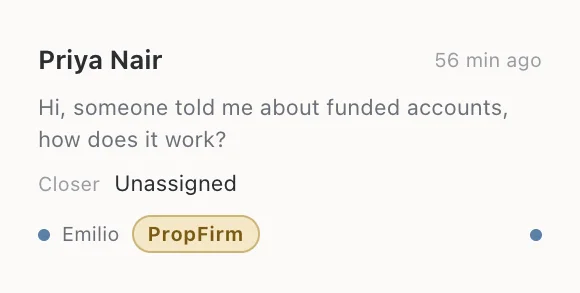
A row shows the client name, how long ago the last message arrived, the last message (or the task to do), the closer, and the account.
- The blue dot on the right means the client is waiting for a reply.
- The gold PropFirm badge means the client is also a PropFirm lead.
- No linked CRM record means this person has no client file yet. Open the client card, fill in the MT5 login and MT5 password, then click Verify (see chapter 7).
- A small clock next to the name means a message is scheduled.
Before you start: the status at the bottom of the list must not say Telegram disconnected. If it does, see chapter 9.
2Reply to a client
This is most of the shift: open To reply, take the first client, answer, move on.
- Click To reply, then the first client of the list.
- Read the last messages. On the right, the client card tells you who this is: deposit, gain, where they are in the journey.
- The AI suggestion is already in the box. Read it. Change what is wrong, or delete it and write your own.
- If a yellow ⚠ Check before sending band appears above the box, read it: a rule thinks something is wrong in the text.
- Press Send (or Ctrl + Enter, ⌘ + Enter on a Mac).
The message box
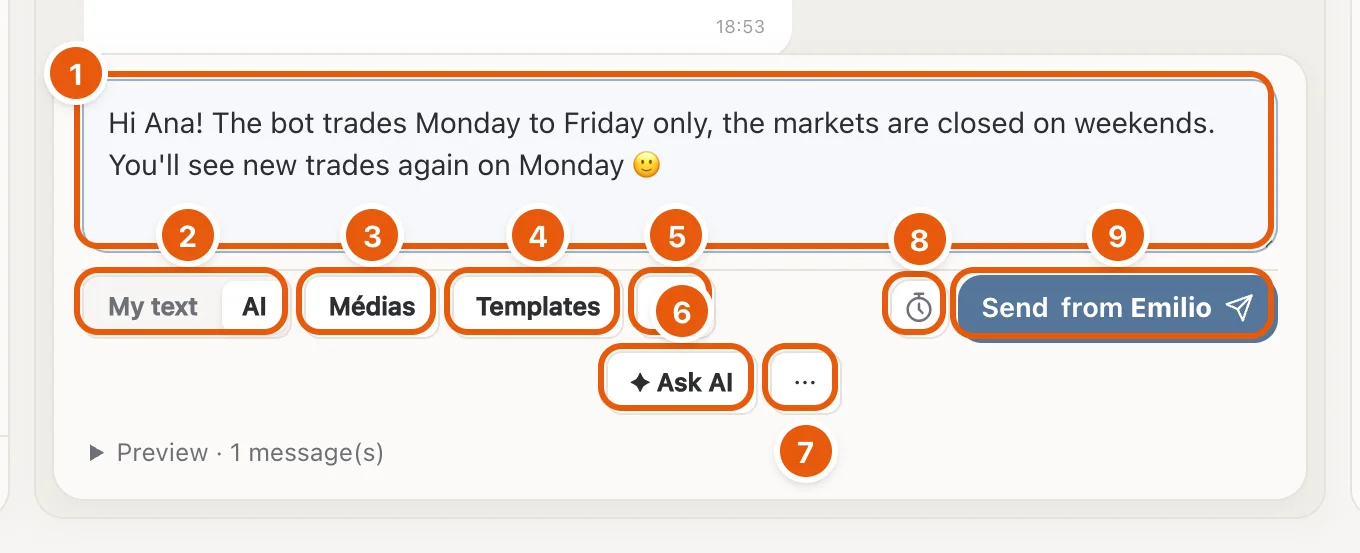
- Your message. What is here is what the client receives.
- My text | AI. Switch between what you typed and the AI suggestion. Nothing is lost when you switch.
- Médias. Attach a photo, video or file from the library.
- Templates. Ready-made texts.
- Emoji.
- Ask AI. Another suggestion, or one that follows your instruction.
- ⋯ No reply needed, Report AI response.
- Clock. Send later.
- Send. Shows the account the message leaves from.
“Preview · 1 message(s)” under the box shows exactly how the message will leave.
Ask the AI for a better suggestion
Open ✦ Ask AI.
- Generate another AI reply writes a new suggestion.
- Type an instruction such as shorter or more casual, then Regenerate (or Enter).
If you already edited the text, your version is kept in My text.
The AI can also answer AI: no reply needed or Needs a human. In both cases you decide.
Nothing to answer? Close the conversation
When the client's last message needs no answer (“ok thanks”, a thumbs up), open ⋯ and click No reply needed.
- The conversation leaves To reply and goes to Done.
- The AI suggestion is thrown away.
- It comes back by itself when the client writes again.
- Closed by mistake? Open it in Done, then ⋯ → Reopen.
Reading the conversation
- Under each message we sent: who sent it and how it was written (AI, AI · edited, Template, Manual, or Telegram when it was sent from the Telegram app).
- ✓ = sent. ✓✓ = seen by the client.
- Under the client name you see online or last seen…, and typing… when they are writing.
- Older messages at the top loads the history before.
- Photos load by themselves. For a video, voice note or file, click its Load button. Click a photo to see it full screen.
3Templates, media, emoji
Templates
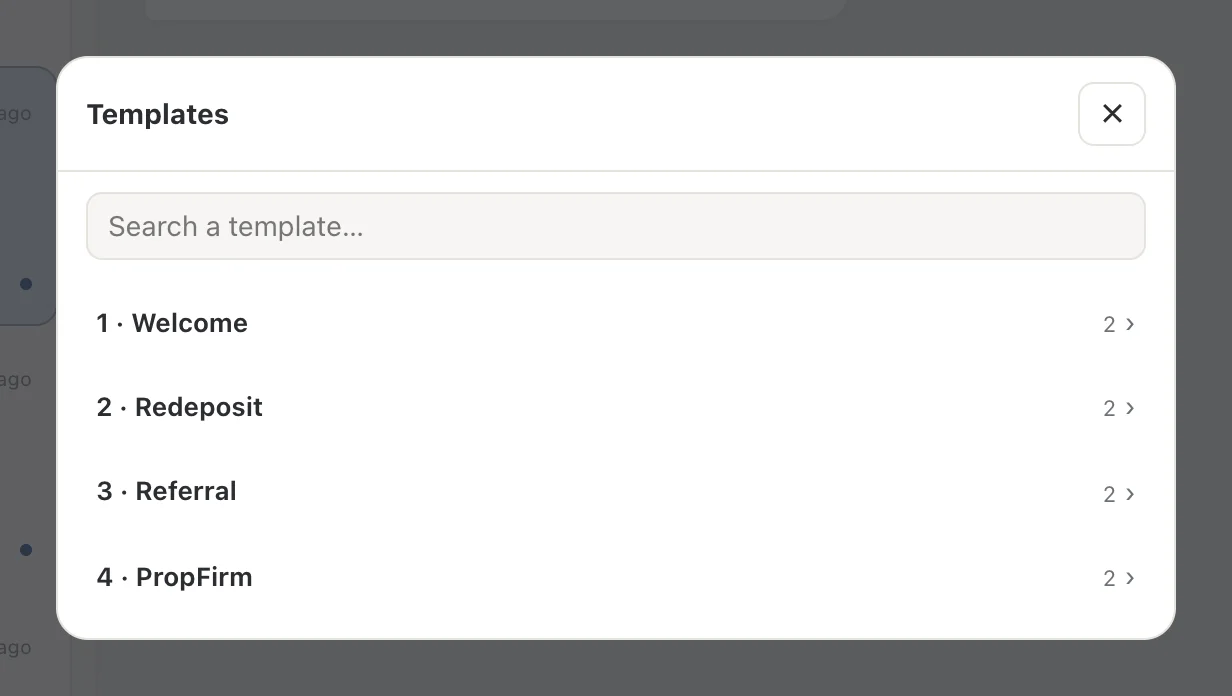
- Templates are sorted in folders. Open a folder, or use the search field.
- [name] in a template becomes the client's first name.
- The template is added after what is already in the box. Empty the box first if you only want the template.
- 📎 on a template means it also attaches a media.
- You can still edit the text before sending. The message is then labelled “Template · edited”.
Médias
- Click Médias, then Use media on the photo, video or file you want.
- If the media has a text, it is added to the box.
- The attachment shows under the box. Remove takes it off.
- Attaching a file from your own computer is for managers only.
Emoji
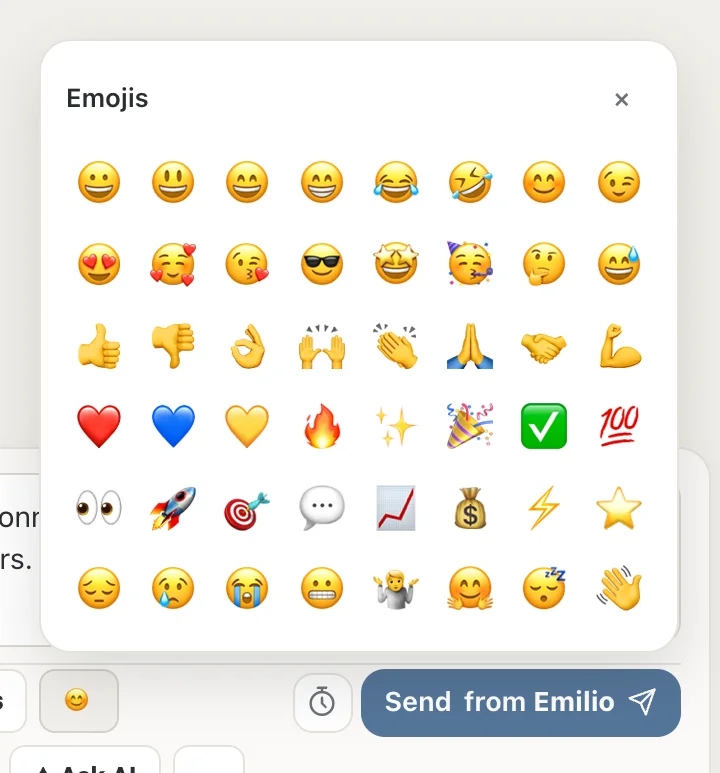
The 😊 button opens the emoji grid. The emoji is inserted where your cursor is.
4Fix or schedule a message
The menu of a message
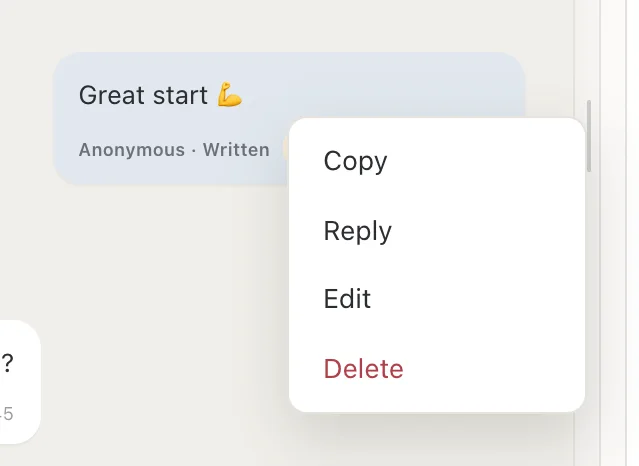
Right-click a message (long-press on a phone).
- Copy copies the text.
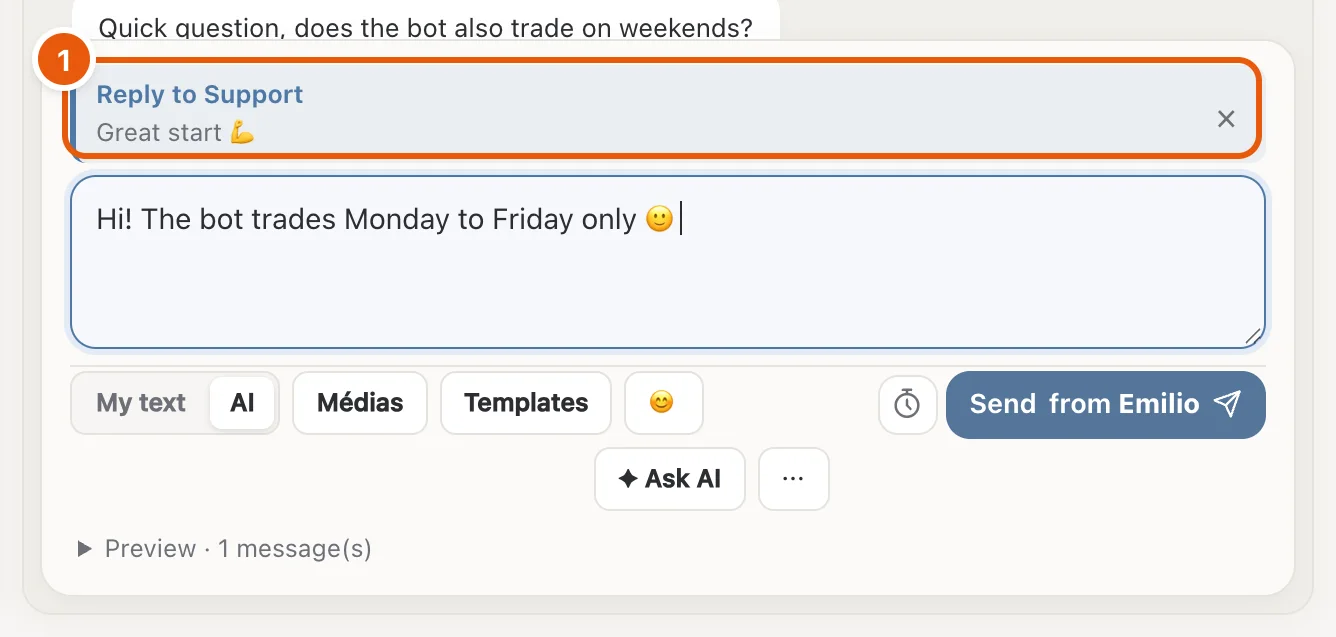
- Reply quotes that message in your answer.
- Edit and Delete are only on messages we sent.
Send later
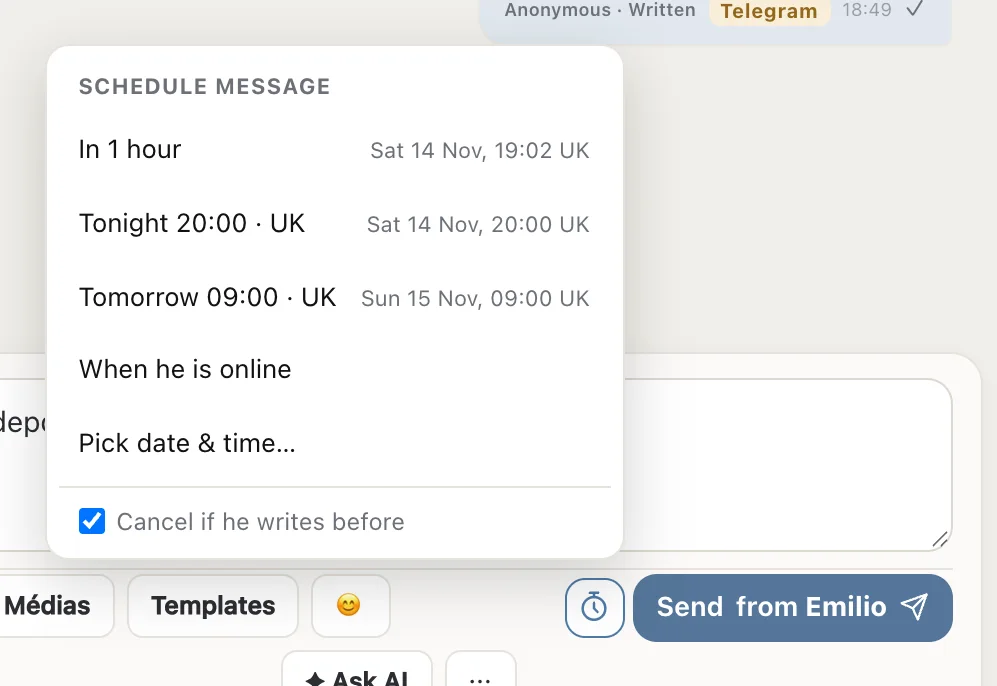
Write the message, then click the clock left of Send (or right-click Send).
- In 1 hour, Tonight 20:00, Tomorrow 09:00, When he is online, or Pick date & time…
- Cancel if he writes before is ticked by default: if the client writes first, the message is not sent. Untick it to send no matter what.
- Times are shown in UK time.
- A message with an attachment cannot be scheduled.
5Client journey tasks
After a first deposit, each client follows the same steps: welcome, Bitcoin bot (opener, then pitch), Premium bot (opener, then pitch), referral, PropFirm… The console tells you which step is due today, for which client.
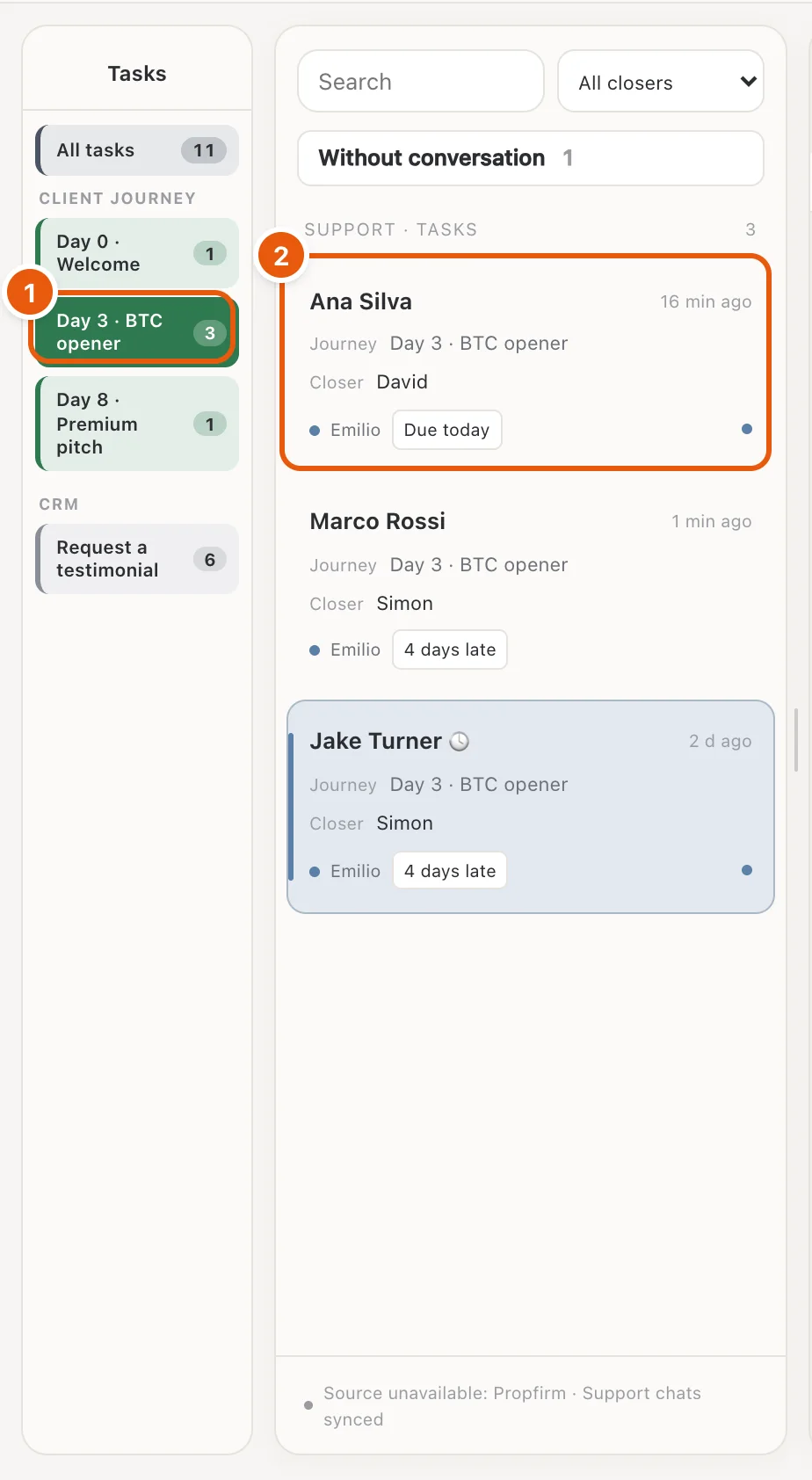
Work a folder
- Click a folder on the left (1). The list (2) now shows only the clients with that task.
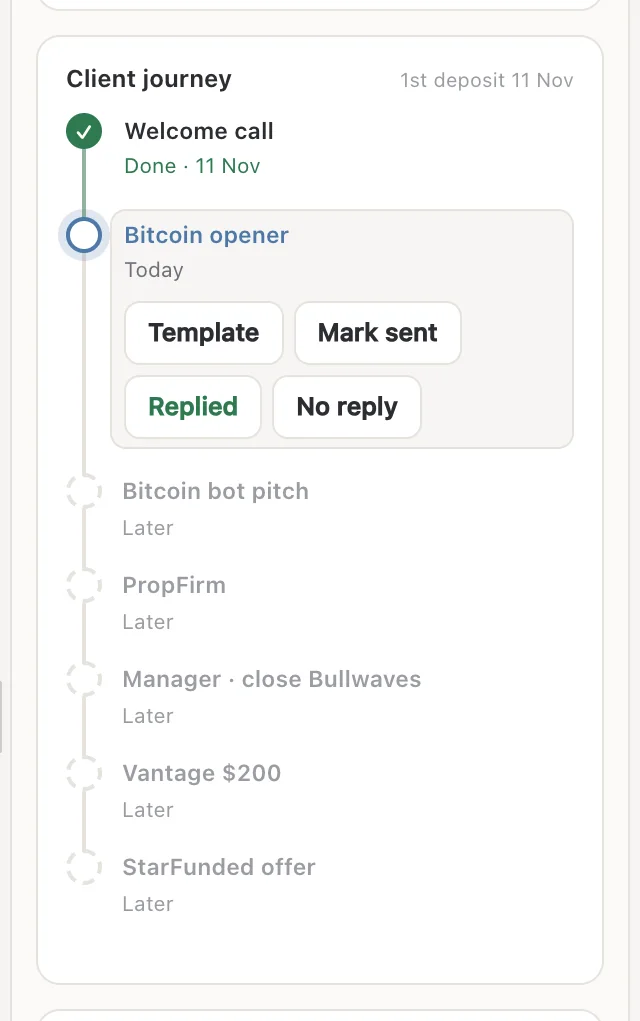
- Open a client. The step to do is open in the Client journey card on the right.
- Click the same folder again to go back to all conversations.
A red label such as 3 days late means the step should already be done.
Do the step
- Template opens the templates of this step. Pick one, adjust, Send. The step becomes Sent · waiting for his answer.
- When the client answers, click Accepted or Refused (some steps say Bought or Opened).
Bitcoin and Premium come in two steps. First the opener, a short “hey, how are you”: Template, then Mark sent. If he answers, click Replied and the pitch opens at once. If not, click No reply or leave it: the pitch appears the next day in its folder (Day 4 · BTC pitch, Day 8 · Premium pitch), whether he answered or not. The pitch is the full offer: Template, Mark sent, then Accepted or Refused. If you already pitched the same day, just click Mark sent.
- Mark sent marks the step as sent without sending anything. Use it only when the message really went another way.
- A step that is a simple task has one button: Done.
- Undo cancels the last thing you clicked on a step.
- “He redeposited +$… ” with Validate: the client added money. Validate to record it on the step.
- Steps named “Manager · …” are for managers. You only see Manager notified.
- The day a manager closes Bullwaves, you get the step Bullwaves closed · message: Template, send it, then Done.
- 1st uFunded payout (under the steps, after a PropFirm purchase): click it only when the client took his first profit from uFunded. It opens the 10% commission task. Clicked by mistake? Undo payout on the Commission step.
Request a testimonial
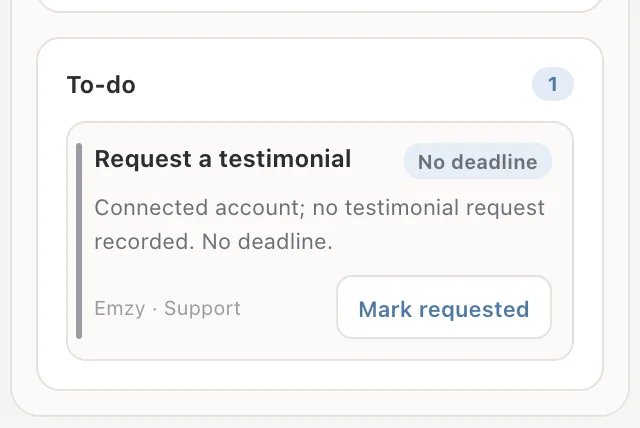
This task is in the To-do card, at the bottom of the client card.
- Send your message to the client as usual.
- Click Mark requested. That's all: it is recorded with today's date.
6PropFirm tasks
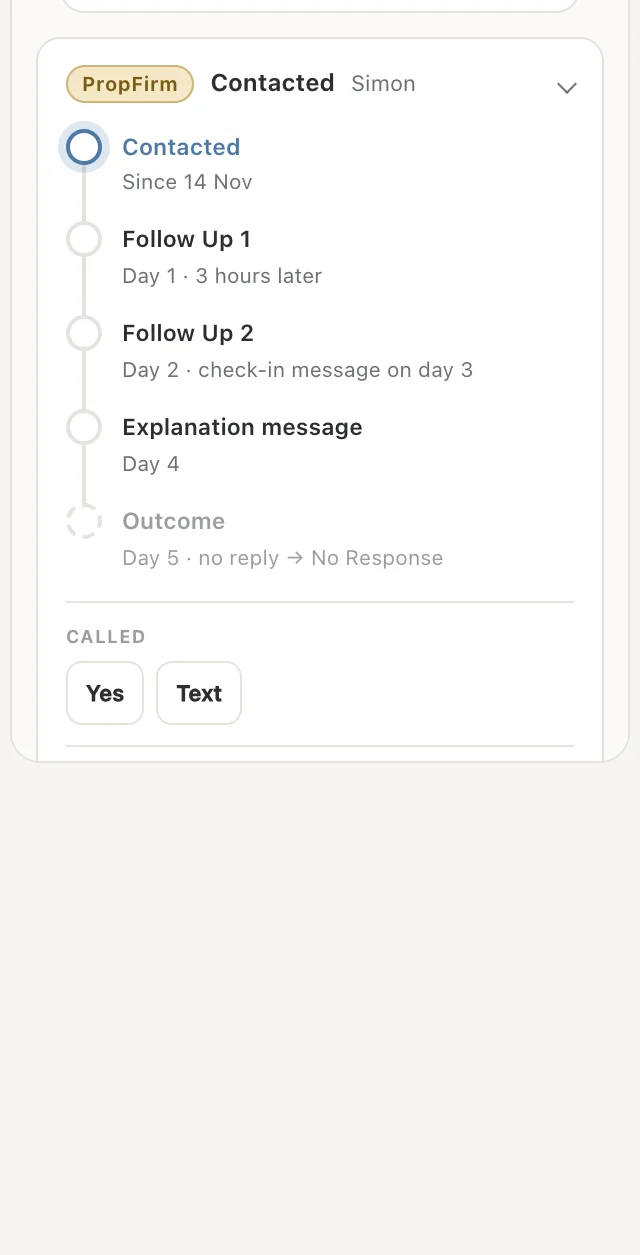
PropFirm leads follow the closers' SOP: Message 1, Follow Up 1 three hours later, Follow Up 2 on day 2, a check-in on day 3, the explanation message on day 4, the last message on day 5.
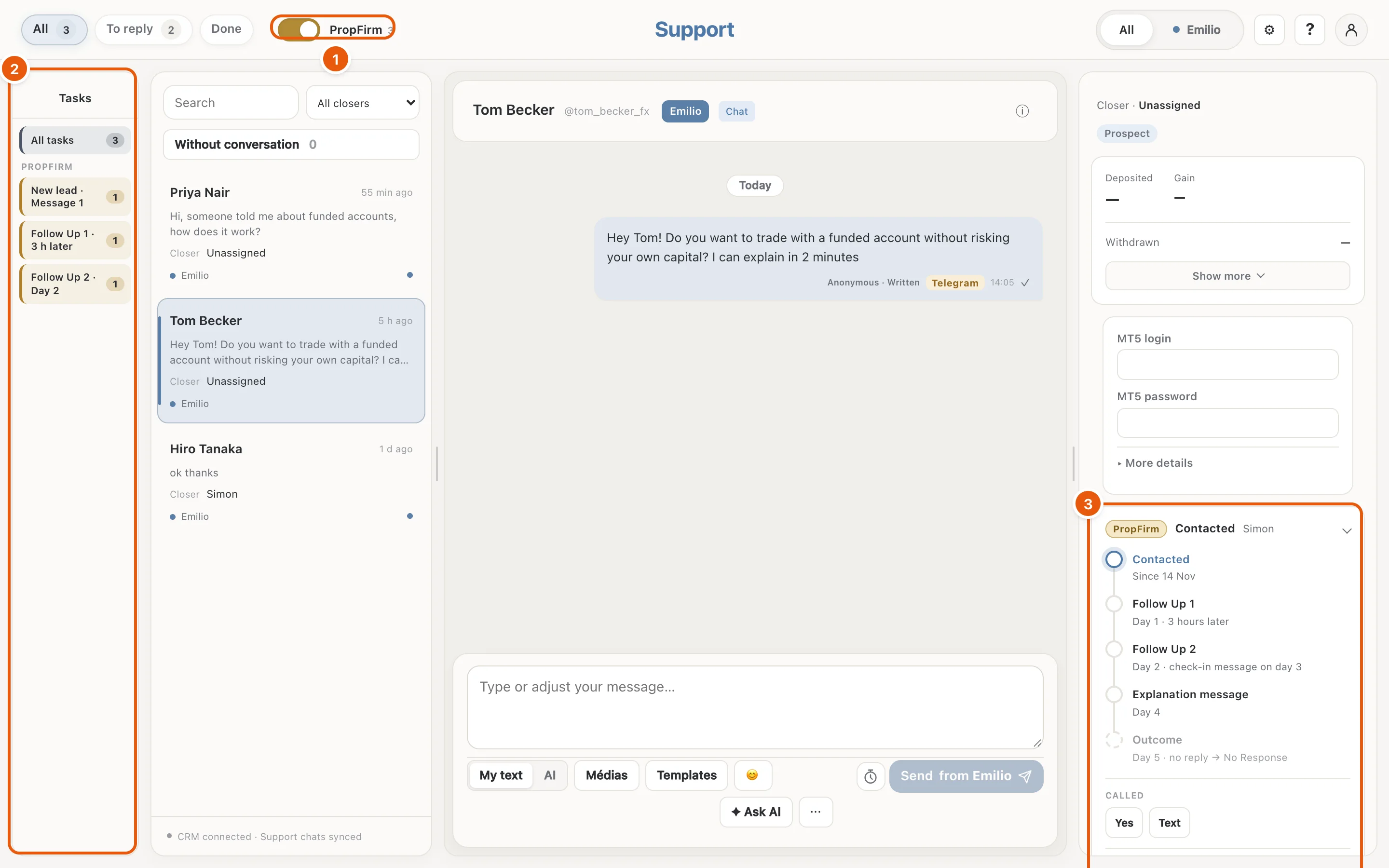
- Turn the PropFirm switch on. The list now shows PropFirm leads only.
- Folders follow the SOP. New lead · Message 1, Follow Up 1 · 3 h later, Follow Up 2 · Day 2…
- The PropFirm card shows where the lead is, and the buttons to move it.
Do a PropFirm task
- Open a folder, then a lead.
- Send the message of the step (the 4 · PropFirm templates).
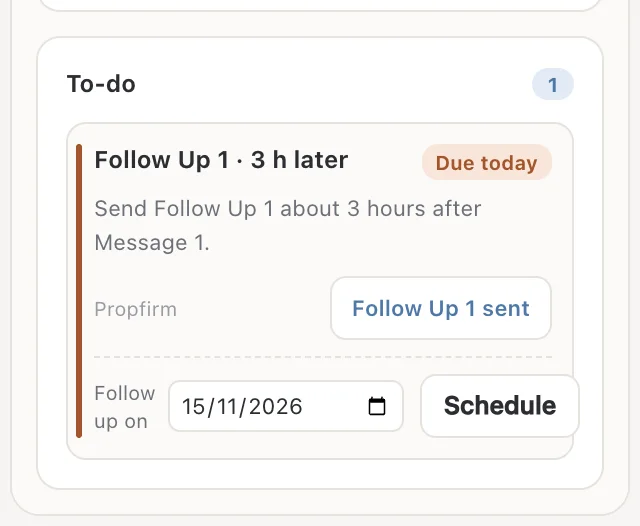
- In To-do, click the button of the task, for example Follow Up 1 sent. The status and the dates are updated for you.
These buttons save immediately. There is no “Are you sure?”.
The PropFirm card
- Called: click Yes or Text. Click the same one again to clear it.
- Set status: the big button is the next step of the SOP. The small ones close or park the lead: Callback, Bought, Brokie, Not interested, No response, Ghosted, Unreachable.
- If the SOP needs more information (a follow-up date, the account bought…), a window opens and tells you what is missing.
- Follow up on a date + Schedule, in the to-do: the lead comes back in “Follow up today” that day.
Client details
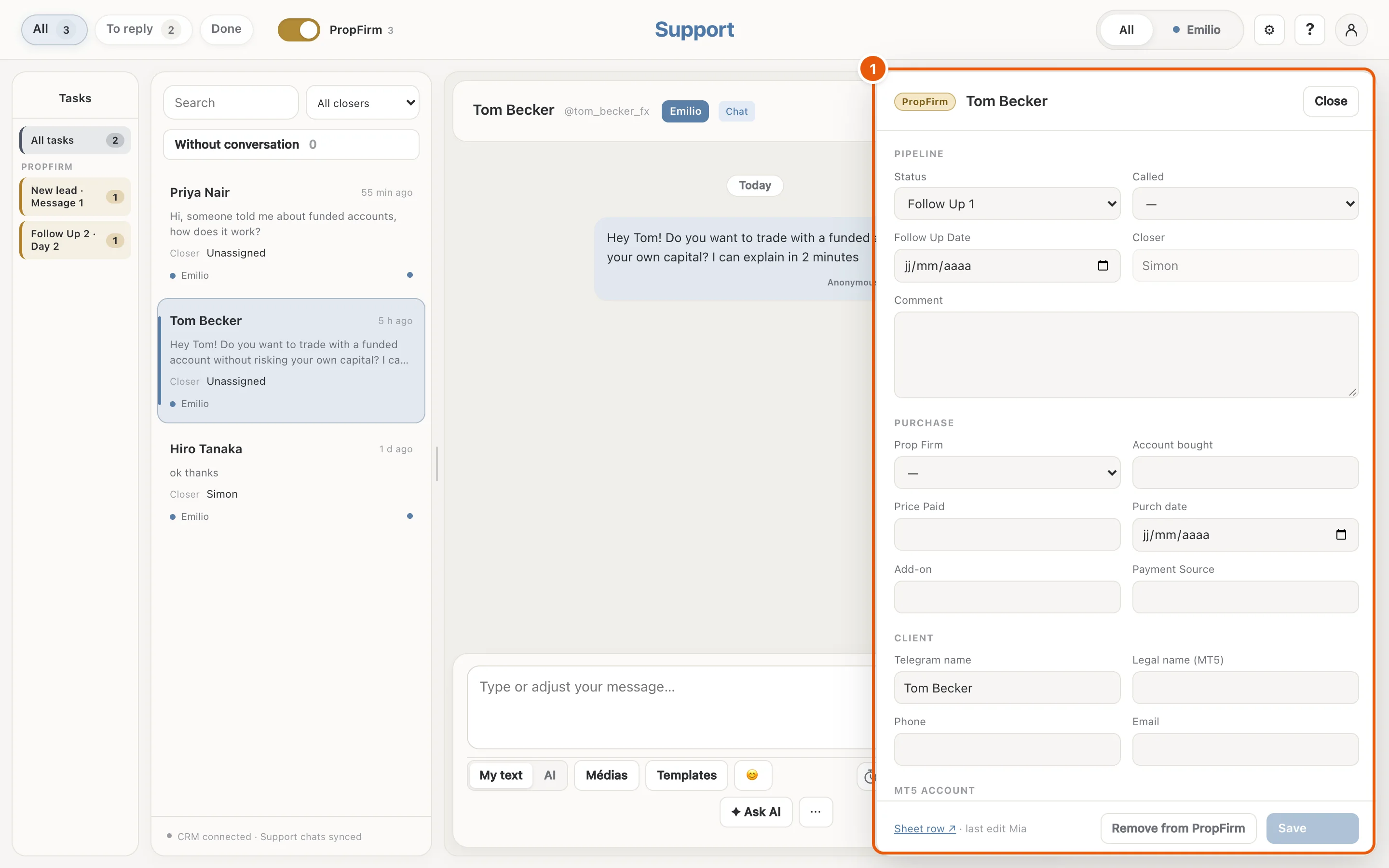
When a sale is made, fill in Client details completely: Status Bought, Prop Firm uFunded, Price Paid, Account bought, Purch date, Email, and the uFunded Login and Password. The uFunded sales sheet is filled from these fields within 5 minutes.
Add a client to PropFirm
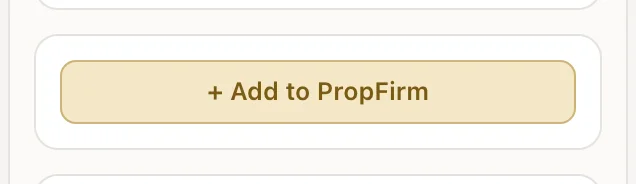
On a Support client, the client card has + Add to PropFirm. One click adds the client as a new lead and starts the PropFirm tasks. The client then carries the PropFirm badge.
7Find a client, special cases
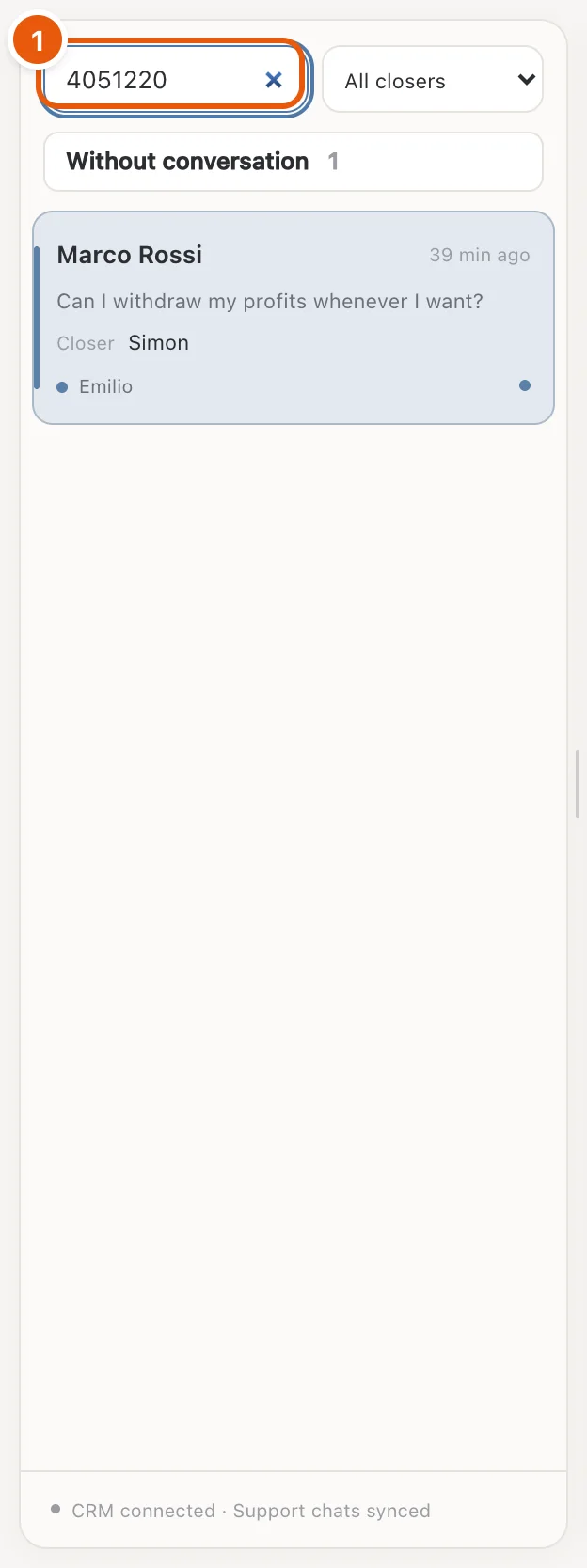
Search
Type in Search (1): a name, a @username, an MT5 login or a phone number. Capital letters, accents and the @ do not matter.
The list next to it filters by closer.
A client who never wrote to this account
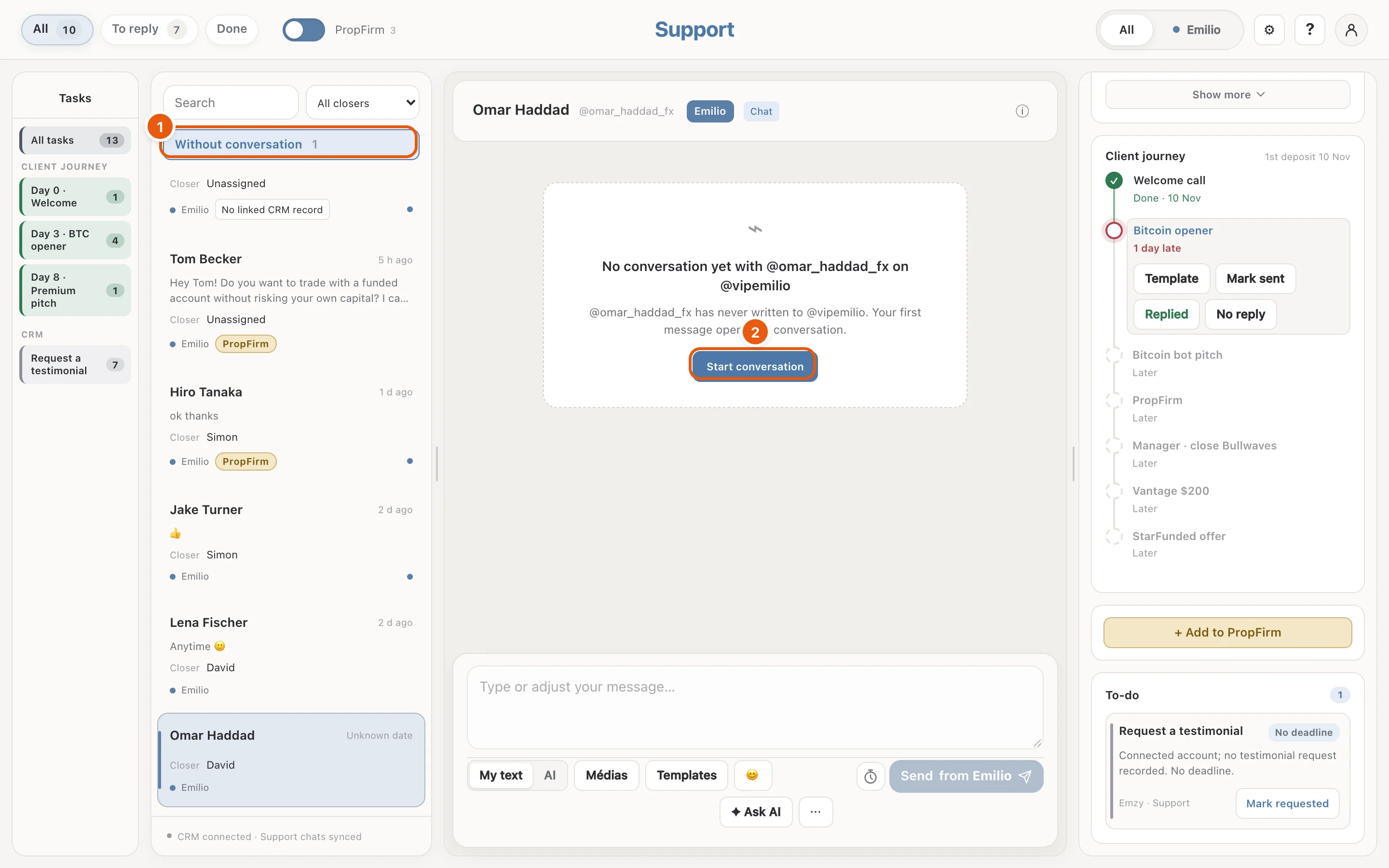
- Without conversation shows the CRM clients who have no chat on this account yet. A search finds them too.
- Start conversation unlocks the message box. Your first message opens the chat on Telegram.
“Can't message this client”
This box appears when the CRM has no valid @username for the client, or when several CRM rows share the same one. It tells you why, and who talked to the client last.
- Several rows share the name: pick the right Row.
- You know the right @username: Add @username, then Save.
- You only have a phone number: Add phone number. It is kept and shown, but the console cannot write to a number.
What you add here is saved in the console only. The Google Sheet is not changed.
The client card
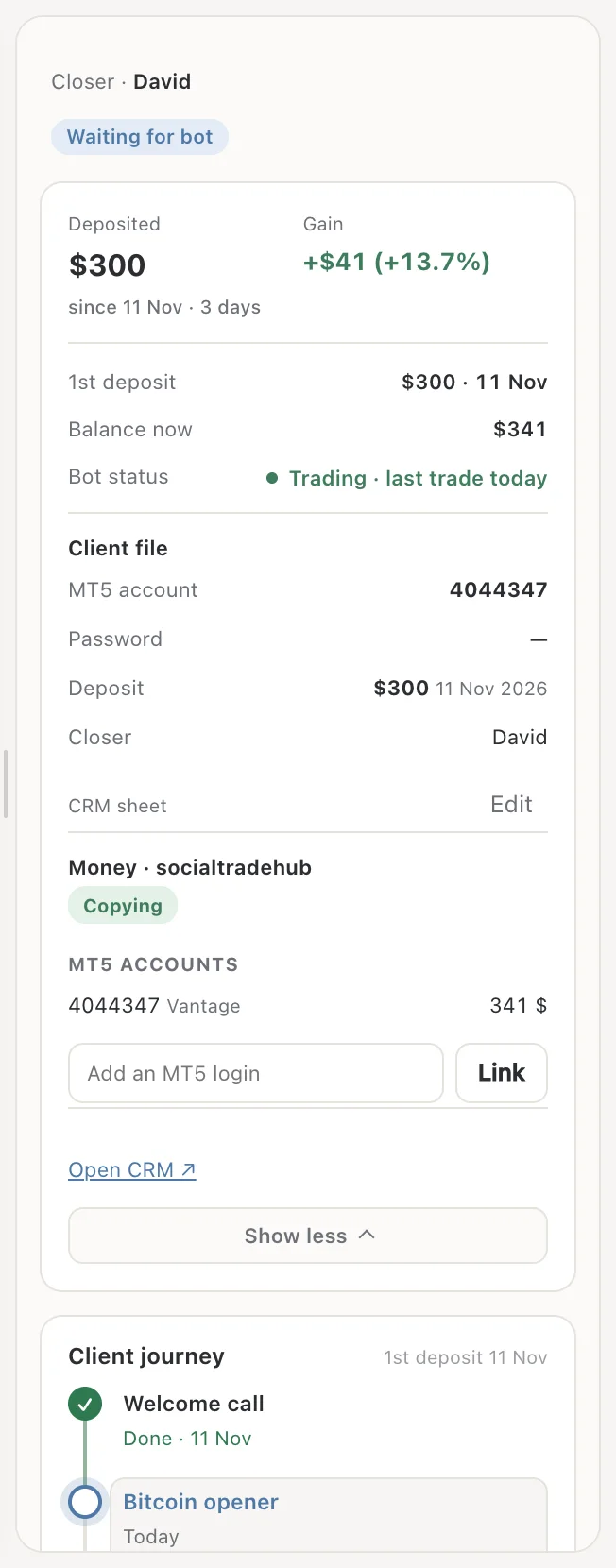
- The top shows what the client deposited, the gain or loss, and the deposits.
- Show more opens the money details: bot status, MT5 accounts, alerts such as a recent withdrawal.
- Client file: under his name, a label says where the file is: Prospect, Missing info, Ready to verify, Client. With no file yet, the card shows a short form: MT5 login and MT5 password (the amount read by the AI from the deposit proof is shown above), then Verify. What is missing is in red. The rest is under More details.
- A problem gets its own card with one button: Check amount (use the socialtradehub amount), Login not found, Bot can't connect (edit the login or the password, or Ask client, which writes the request in your box).
- Client files to confirm, under the search: the files the AI could not confirm. Click one to open the client.
- Open CRM ↗ opens the client's row in the Google Sheet.
- On a narrow screen the card is hidden: the ⓘ at the top right of the conversation opens it.
The AI wrote something wrong
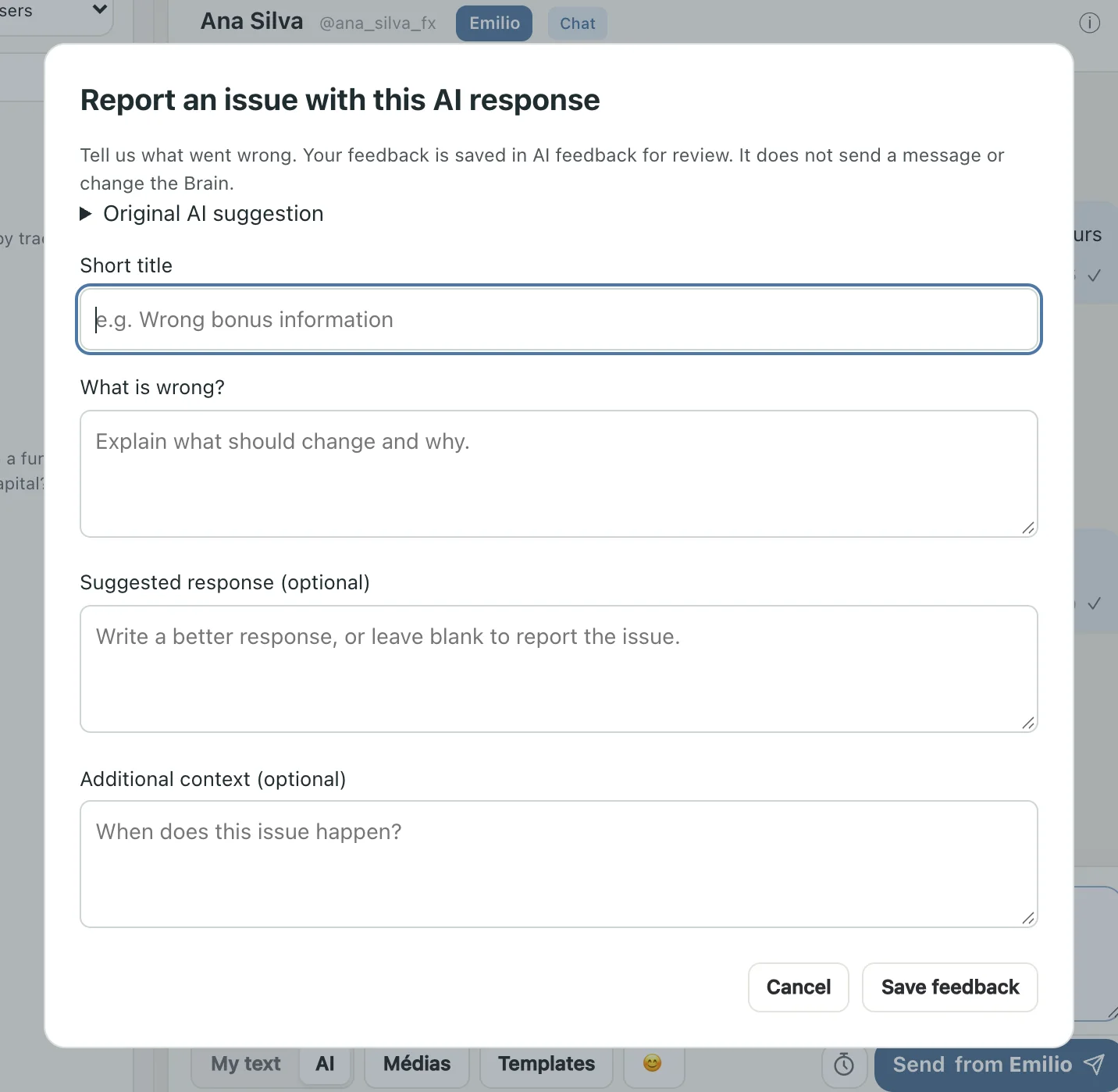
Your account menu
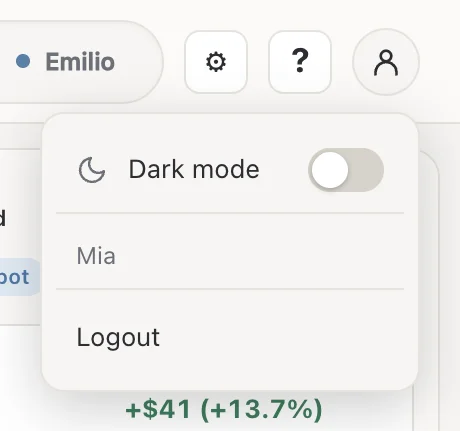
The person icon at the top right: Dark mode, your name, Logout. Log out at the end of your shift if you share the computer.
You can also drag the thin bars between the columns to resize them. Double-click a bar to reset it.
8On your phone
Same console, one screen at a time: the list, then the conversation, then the client card.
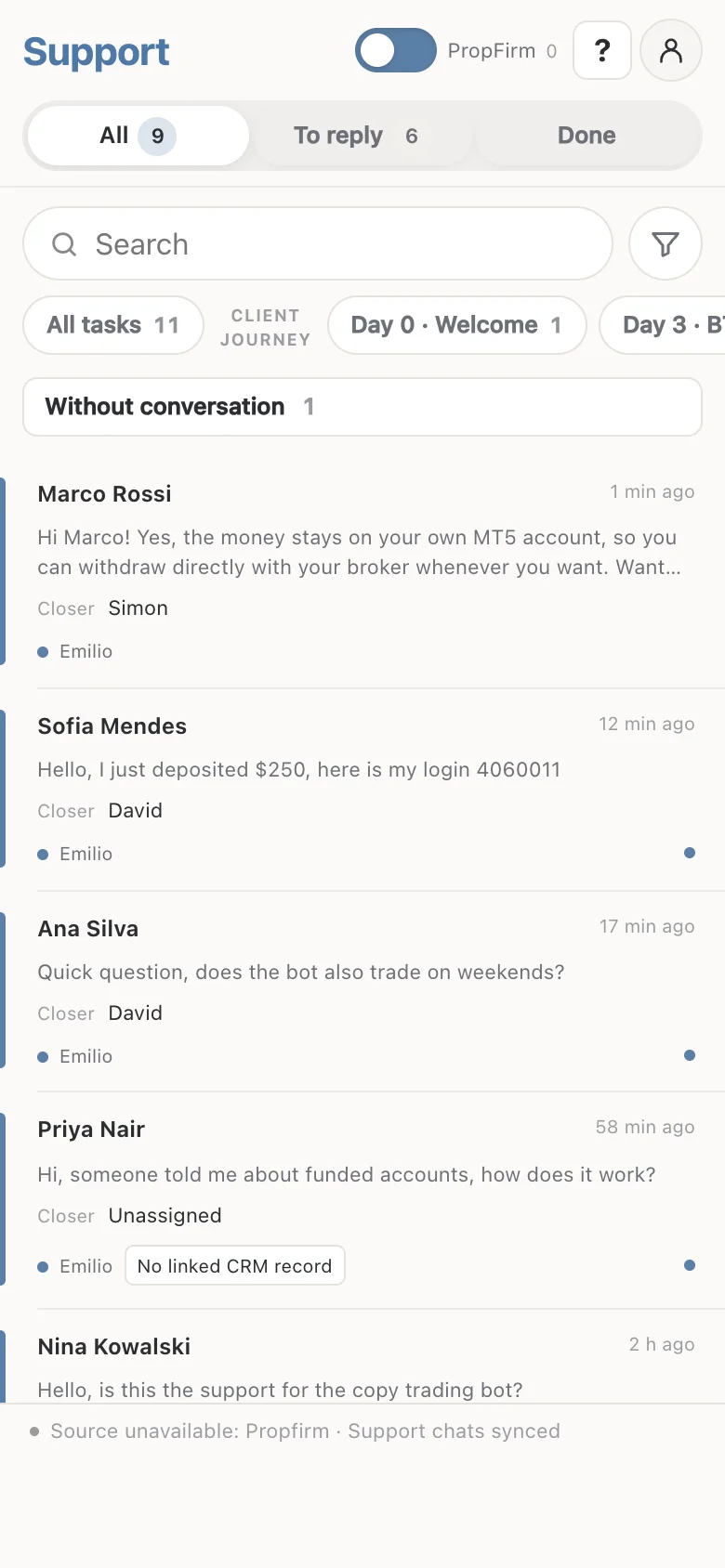
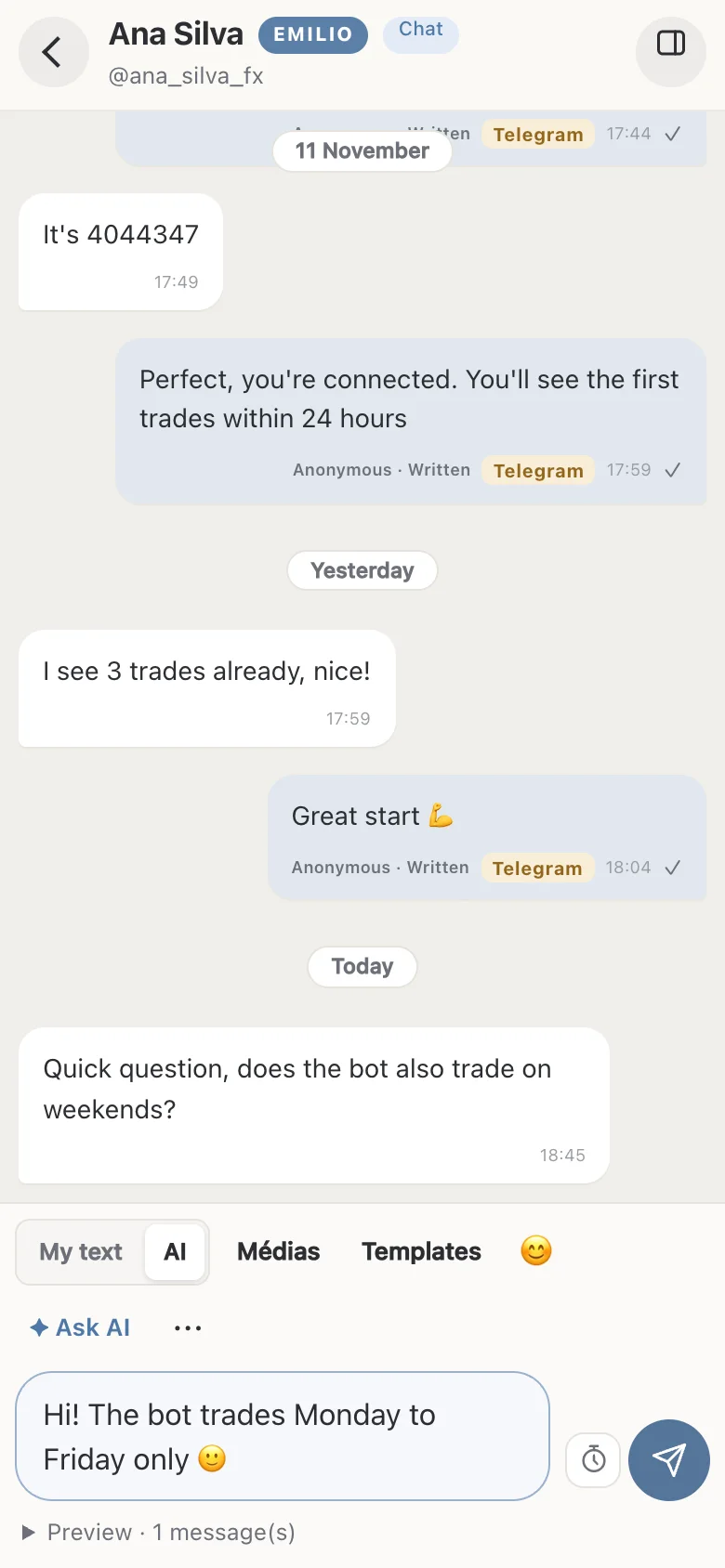
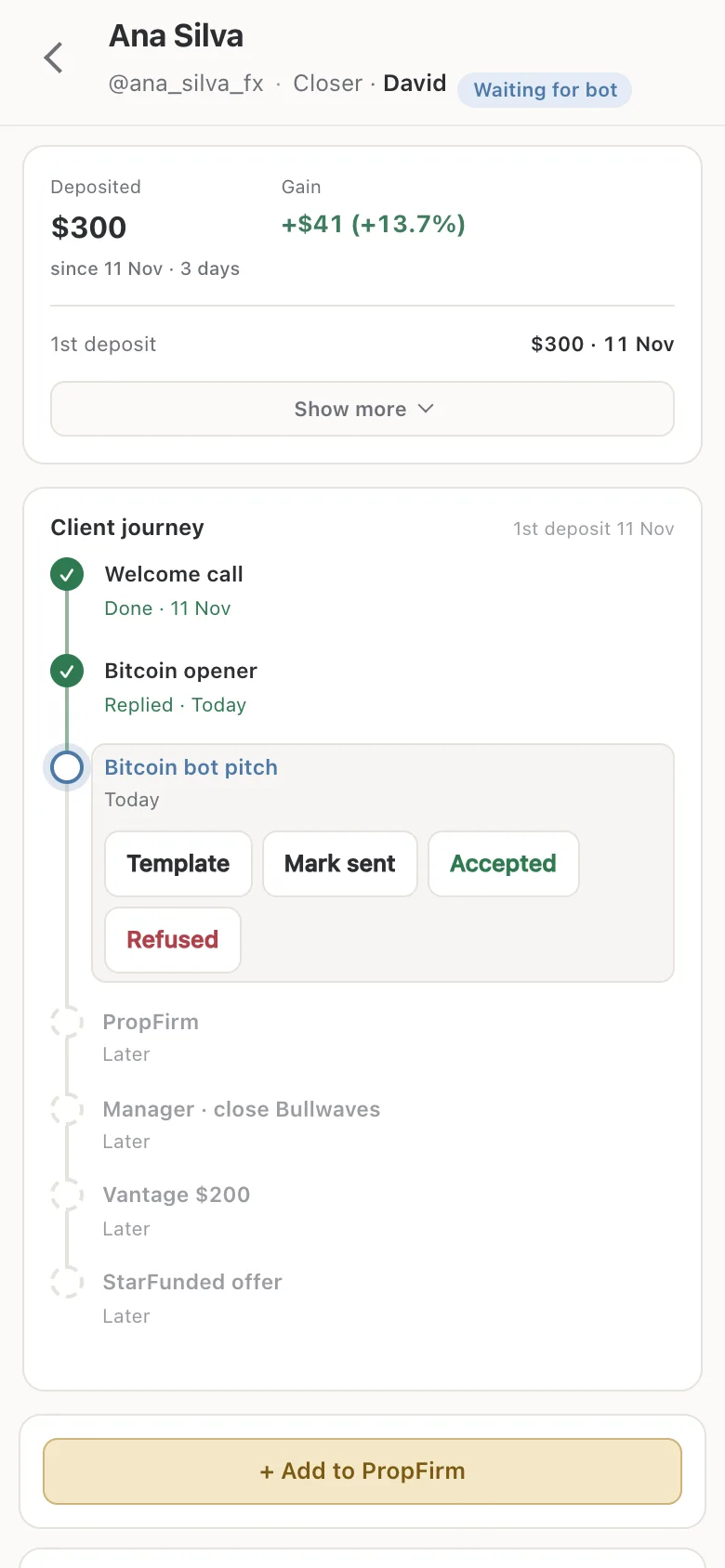
- Long-press a message for Copy, Reply, Edit, Delete.
- Long-press Send to schedule.
- Settings and the account filter are in the account menu.
9When something looks wrong
| What you see | What it means | What to do |
|---|---|---|
| Telegram disconnected · reconnecting | The console lost the Telegram account. Messages cannot leave. | Wait a minute. If it stays, tell your manager. |
| Session expired. Enter your PIN. | Your session ended. | Type your PIN again. |
| Access denied. Open the authorized Support link. | The link is missing or too old. | Open the original Support link again, then your PIN. |
| ⚠ CRM tab refused · some tasks are hidden | A column moved in a Google Sheet. Some tasks are missing. | Tell your manager. Keep answering clients. |
| Source unavailable | A CRM sheet could not be read. | It retries by itself. If it stays, tell your manager. |
| An earlier send is unconfirmed… | The console is not sure your last message left. | Restore that draft and send it again before writing something else. |
| Confirmation delayed. Retry the same action… | A save took too long. | Click the same button again. Do not start a different action. |
| AI couldn't write a suggestion | The AI failed this time. | Write your reply, or Ask AI → Generate AI reply. |
| Responsible access required | The action is for managers. | Ask a manager. |
| Could not load · Retry (on a photo or file) | The file was not fetched from Telegram. | Click Retry. |
When in doubt, do not send. Ask your manager first: a message sent to a client cannot be taken back cleanly.